Connecting a payment tool
How to add a payment tool to VS Code Copilot
Add a remote MCP payment server to GitHub Copilot in VS Code: the current mcpServers file, a bearer header read from your environment, and what to test first.
Add the server to a Copilot MCP file (~/.copilot/mcp-config.json for yourself, or .mcp.json at the workspace root) as an mcpServers entry with type "http", the url, and an Authorization header that reads the token from an environment variable, such as "Bearer ${VEYRA_TOKEN}". Then make one low-stakes tool call to confirm Copilot can use it.
Why is this harder than it sounds?
VS Code's MCP setup has changed, and most instructions online show the old version. VS Code's docs now describe two harnesses. The Copilot harness reads portable files with a top-level mcpServers key. The Local harness, which used .vscode/mcp.json with a servers key and inputs prompts for secrets, is deprecated and VS Code says it will be removed in February 2027. The two formats use different variable syntax, so a header copied from an old guide can send the literal text of your variable instead of the token. On top of that, Copilot's agent reads a lot of text it didn't write (open files, dependencies, fetched pages), and any of it can try to steer a tool call. A payment tool needs limits that live outside the editor.
How do you do it?
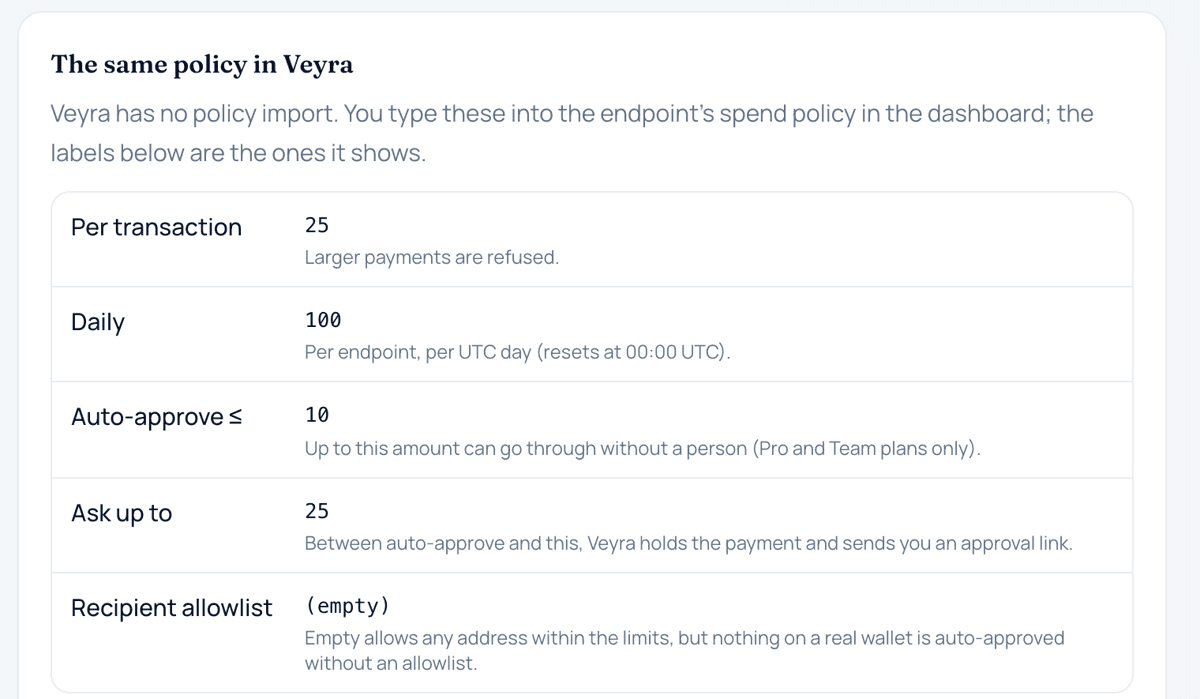
- Create a credential with low limits. Make a dedicated endpoint for VS Code with small per-payment and daily limits, and a recipient allowlist if you know who it should pay. Start on a simulated payment source.
- Put the token in your environment. Set an environment variable such as VEYRA_TOKEN where VS Code runs. VS Code's configuration reference says to provide variables in the environment of the host that runs or connects to the server; in remote and Dev Container sessions the user file and the variables belong on that remote host, not your laptop.
- Add the server. Run MCP: Add Server from the Command Palette, or Chat: Open Customizations, then MCP Servers, then Add Server. Choose HTTP (HTTP or Server-Sent Events), enter the URL and a server ID, and pick Global, then Copilot Global. VS Code's docs say that destination writes your user mcp-config.json, which is ~/.copilot/mcp-config.json unless COPILOT_HOME is set.
- Add the Authorization header. Open the file and make the entry read: { "mcpServers": { "veyra": { "type": "http", "url": "https://veyra.money/api/mcp", "headers": { "Authorization": "Bearer ${VEYRA_TOKEN}" }, "tools": ["*"] } } }. VS Code's reference says HTTP servers can use ${NAME} references in header values, that ${env:NAME} is the older editor-managed syntax, and that a bare $NAME is treated as literal text.
- Confirm it with a tool call. VS Code's docs say adding a configuration alone doesn't confirm the session can use it. Ask Copilot to read your payment budget, then expand the tool call in the chat and check it called get_budget and got your limits back. You can switch off tools you don't want from the tools picker in the Chat view.
- Try one payment on the simulated source. Ask for one small payment and one in your approval band. Check the first settles as simulated and the second comes back awaiting approval, with Copilot handing you the link instead of trying again.
- Approve payment calls one at a time. When Copilot asks to run a tool, VS Code lets you expand the call to review its inputs before choosing Allow Once. Read the amount and recipient. Don't add the payment tool to any auto-approval list while you are still learning how the agent behaves.
What it does not mean
- A .vscode/mcp.json with a servers key and an inputs prompt is not the current Copilot format. VS Code marks it as the deprecated Local harness and says servers that need ${input:…} aren't forwarded to Copilot.
- "Bearer ${env:VEYRA_TOKEN}" and "Bearer $VEYRA_TOKEN" are not the portable syntax. The first is the old editor-managed form; the second is sent as literal text, and the server will reject it.
- A workspace-root .mcp.json is not private. Everyone who clones the repository gets it, so it may hold a variable reference but never the token itself; VS Code's docs say not to commit tokens or populated authentication headers.
- Allowing a tool call once is not a spending limit. The confirmation shows you the call; it can't stop a payment you approve without reading.
Common questions
Can I keep using .vscode/mcp.json with an inputs prompt?
VS Code says the Local harness that reads it is deprecated and due to be removed in February 2027, and that it is only for maintaining existing setups. New Copilot configuration belongs in an mcpServers file, with the token in an environment variable.
Will Copilot CLI see the payment tool too?
VS Code's docs say the Copilot Global configuration is shared across your workspaces and compatible Copilot experiences, including Copilot CLI. Anything that loads it can call the tools, under the same limits and daily cap.
Copilot says the server is unauthorized. What should I check?
First, that VEYRA_TOKEN is set in the environment VS Code actually runs in (for remote sessions, on the remote host). Then that the header uses ${VEYRA_TOKEN}, not $VEYRA_TOKEN, and that the token hasn't been rotated since you copied it.
Where does Veyra fit?
Veyra's docs give a generic mcpServers block with url and headers for any host that takes a remote URL plus a header; Copilot's portable format is the same shape with "type": "http" added. Veyra doesn't have a VS Code page of its own yet. The endpoint answers MCP over HTTP POST at https://veyra.money/api/mcp and doesn't offer the older SSE transport, so choose HTTP when VS Code asks. Once connected, Copilot sees seven tools: get_capabilities, get_budget, list_payment_sources, create_payment, get_payment, list_payments and cancel_payment. Limits, the recipient allowlist and approvals are enforced on Veyra's server, so nothing in the VS Code file can raise them. Rotate or revoke the credential from the endpoint page if it ends up somewhere it shouldn't.
Sources
Terms on this page
- MCP serverAn MCP server is a service that offers tools, resources or prompts to AI applications using the Model Context Protocol, an open protocol built on JSON-RPC 2.0.
- Auto-approve limitAn auto-approve limit is the largest single payment an agent may make without a person approving it, within any other caps that apply.
- Recipient allowlistA recipient allowlist is a list of approved payees, such as wallet addresses, that a payment system checks before it lets an agent pay; payments to anyone not on the list are held or refused.
This page explains how agent payments and the related technology work. It is not financial, investment, legal or tax advice. Protocols and provider features change; check the linked official sources before relying on a detail.